
Table of Contents
[PDF-XChange Editor Permanent Version]
●It’s small in size, doesn’t consume much memory, and opens files incredibly fast. It handles all the essential editing, annotation, OCR, and encryption functions, and some features are even smoother than those of major companies. I’ve packaged the entire set of resources for immediate use; it’s completely user-friendly and requires absolutely no learning curve, making it ideal for long-term personal use or office backup.
Website: https://www.pdf-xchange.com/products
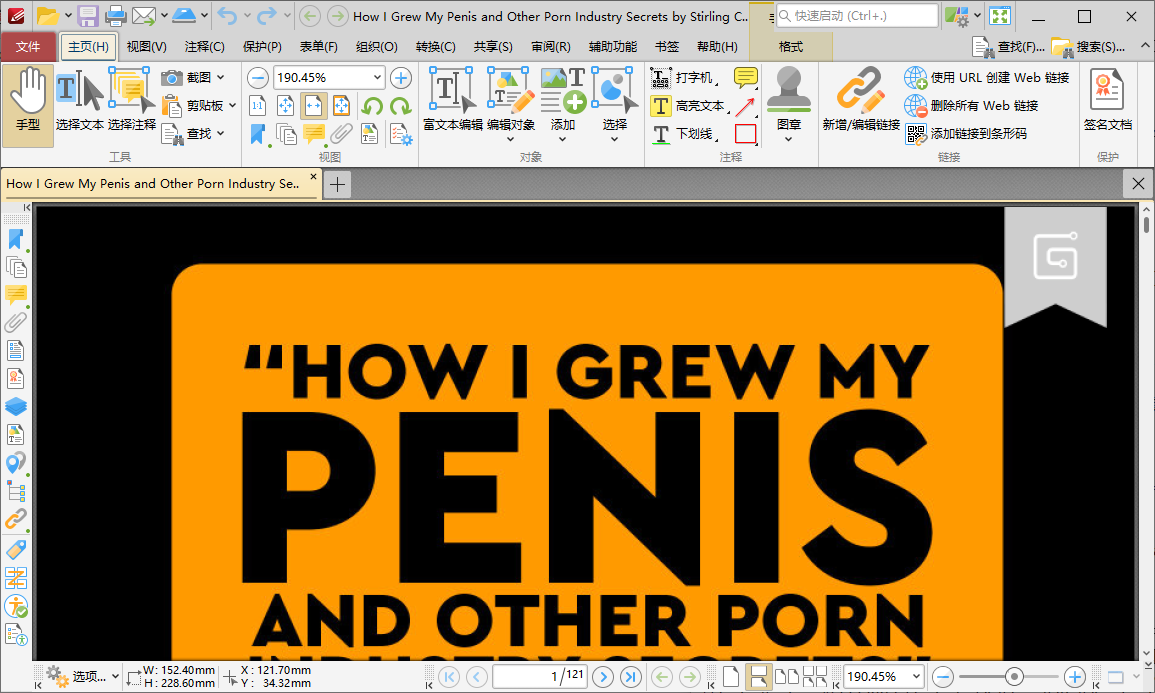
![[Office] PDF-XChange – all-in-one PDF Tools for Editing, Merging, OCR, and Annotation](https://p.sda1.dev/28/abc2fb7c9d326149e655920a5b8eaea5/1.png "[Office] PDF-XChange – all-in-one PDF Tools for Editing, Merging, OCR, and Annotation")
【Main Functions of the Software】
●1. Create and convert documents:
Create PDFs from images, Markdown, text, RTF, or scanners.
Supports merging multiple input documents into a single PDF.
Convert PDFs to various formats (such as Word, images, etc.), and also supports generating PDFs from other formats.
●2. Document security
supports password protection and access restrictions (e.g., disabling printing and copying).
Digital signatures are supported to ensure document authenticity and integrity.
●3. Cloud and collaboration integration
supports Dropbox, Google Drive, MS Office 365, and SharePoint.
PDFs can be sent via email.
●4. Page management:
Insert, delete, divide, crop, and rotate pages.
Merge multiple PDFs or split PDF files.
●5. Annotations and Markups
: Supports various annotation types: text annotations, graphic annotations, 3D annotations, audio annotations, etc.
Provides Area Measurement annotations, Callout annotations, Cloud Annotations, etc.
●6. Accessibility and Assistance Features
: Supports “Accessibility Checker,” which checks for accessibility elements in documents.
It also supports setting alternative text descriptions for PDF content for use by screen readers.
●7. OCR (Optical Character Recognition):
Built-in OCR engine capable of recognizing scanned or image-based PDFs, converting text into editable text.
Multi-language support; can convert image-based PDFs into searchable and editable documents.

[Tips and Tricks]
●Here are some features and tips I found particularly useful:
1. Directly convert scanned PDFs into editable text (OCR done with one click): Open the PDF → Click “Document → OCR” → Select language → One-click recognition. Especially suitable for organizing paper documents, textbooks, and contracts.
2. Directly “edit text in PDFs” as smoothly as Word: Select “Content Editing Tools” in the toolbar → Click on the text → Directly type and edit. Compared to Adobe, the experience is lighter and faster.
3. “Extract specific pages” from a PDF to generate a separate file: “Page Thumbnails” on the right → Select the desired pages → Right-click: Extract pages, reduce report content, and only extract key information. An essential office skill.
4. One-click removal of PDF watermarks (only effective for editable objects): Document → “Watermark” → Remove all watermarks. Many automatically generated corporate watermarks can be removed instantly.
5. Batch convert images to PDF (supports drag-and-drop generation): Simply drag multiple images into the window → Automatically merge them into a PDF. You can also adjust the compression level, resulting in a very small file size.
6. PDF Batch Processor (processes hundreds of pages in seconds): File → Batch Processing
supports batch compression, batch page numbering, batch watermarking, and batch format conversion, instantly doubling office efficiency.
●Download and experience more features
Download:
https://pan.quark.cn/s/e815aef62627#/list/share
https://pan.baidu.com/s/1in7fBvF7jw_luS4-F-60_A?pwd=1024#list/path=%2F
https://pan.xunlei.com/s/VOpjj5i7YKM_3kkcfO4zSVZDA1?pwd=5t65